You told me your favorites. Here's my hidden gem.
Over the past few weeks I've been asking you two questions: which AI tool is your favorite, and have you found a hidden gem? The favorite so far is clear. Claude keeps coming up, and I get why.
The hidden gem is the one I want to talk about today. It's Google's Gemini Notebook, which you may still know as NotebookLM. And the feature that earns it the title is a small button in its Studio panel that turns the source documents you provide into a podcast.
Not a robotic text-to-speech readout. A real-sounding conversation between two hosts, about your material. And here's the part that still surprises me: you can jump in mid-episode and ask a question.
First, a quick note on the name
If you've been searching for NotebookLM lately and getting confused, you're not alone. On July 16, 2026, Google renamed NotebookLM to Gemini Notebook. It's still a standalone product, and the core features didn't change. Your old links and shared notebooks redirect automatically.
The idea behind it is simple. You create a notebook, add your sources (PDFs, Google Docs, web links, YouTube videos, your own notes) and the AI works only from what you gave it. It acts as a black box. Only the sources you loaded are used as reference. I tested this out by creating a notebook about dinosaurs, then I asked for a chicken recipe. Since there is nothing in the source material about cooking chicken, it said it couldn’t help with that request. Test that out for yourself!
The screen has three panels: Sources on the left, a Chat in the middle, and Studio on the right. Studio is where you generate things from your sources: reports, flashcards, mind maps, video overviews, and the star of this post, the Audio Overview.
How the podcast feature works
You add your sources, open Studio, and click Audio Overview. A few minutes later you have an episode. It generates in the background, so you can keep working while it cooks.
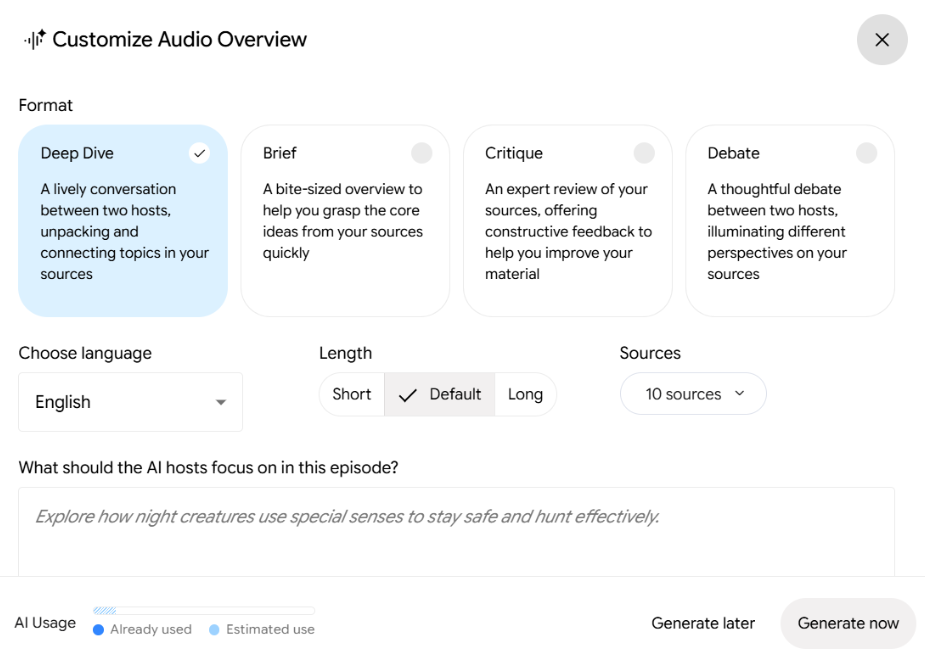
Before you hit generate, you get some real control over the episode. You can pick a format:
Deep Dive (the default): two hosts unpack your material and connect the ideas in a lively back-and-forth.
The Brief: one speaker, key takeaways, under two minutes.
The Critique: two hosts give constructive feedback, which is great for an essay draft or a proposal.
The Debate: two hosts argue opposing sides of the topic.
You can also choose shorter or longer episodes, pick from more than 80 languages, and type a short prompt to steer the hosts. Something like "focus on chapter 3" or "explain this to a complete beginner" changes the episode noticeably.
When it's done you can play it in the browser, speed it up, download it, or share a link.
The magic part: YOU can join in!
This is what turned a clever trick into a tool I actually use. With Interactive mode, you're not just listening to the podcast. You can raise your hand.
Here's how it works:
Generate a new Audio Overview.
Choose Interactive mode in the player.
While it plays, click Join.
The hosts pause, acknowledge that a listener wants to speak, and invite you in.
Ask your question out loud. They answer from your sources, then pick the episode back up where they left off.
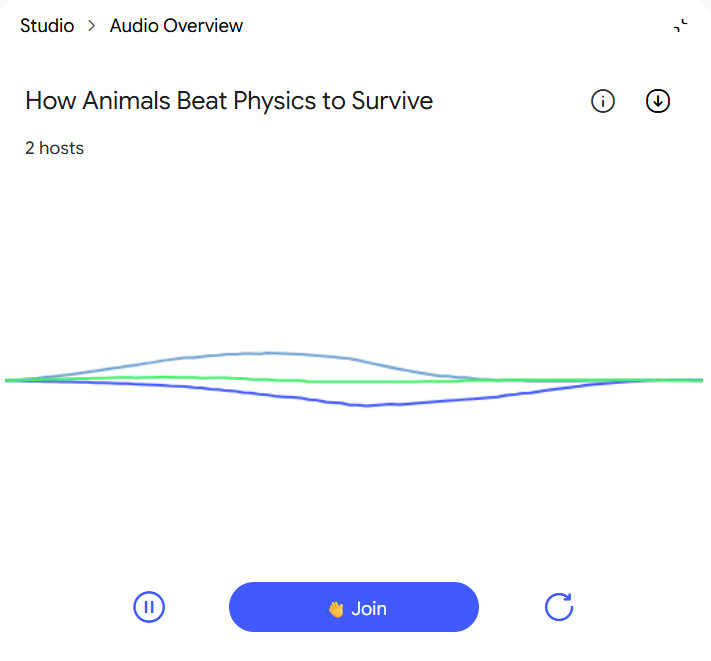
Your topic plays like a podcast, but if you click “Join” you can ask questions!
It feels a lot like calling in to a radio show where the hosts have read every page you have. If something goes over your head, you can say "wait, can you explain that a different way?" and they will. If they skim past a point you care about, you can ask them to go deeper.
For me, this is the difference between passive listening and actual learning. I'm not just hearing a summary. I'm having a conversation about it.
Ways to put it to work
I first learned about Gemini Notebook from a colleague at work. As an example, he loaded up a few of my slide presentations that I had created myself. The slides were about initiatives that I was leading, so the content was not only familiar to me, but I was the one creating the details and managing the projects. No one knew the subject matter better than I did.
With the source material loaded, he clicked over to the Studio, and selected Audio Overview. That is when my mind exploded!
The hosts started talking about MY project, as subject matter experts. They instantly knew all about the details and proceeded to have a casual and interesting discussion about the topic. It was fascinating, and most of all, accurate! This was such a game changer. I have created notebooks at work and at home and it’s such a great way to learn and understand content.
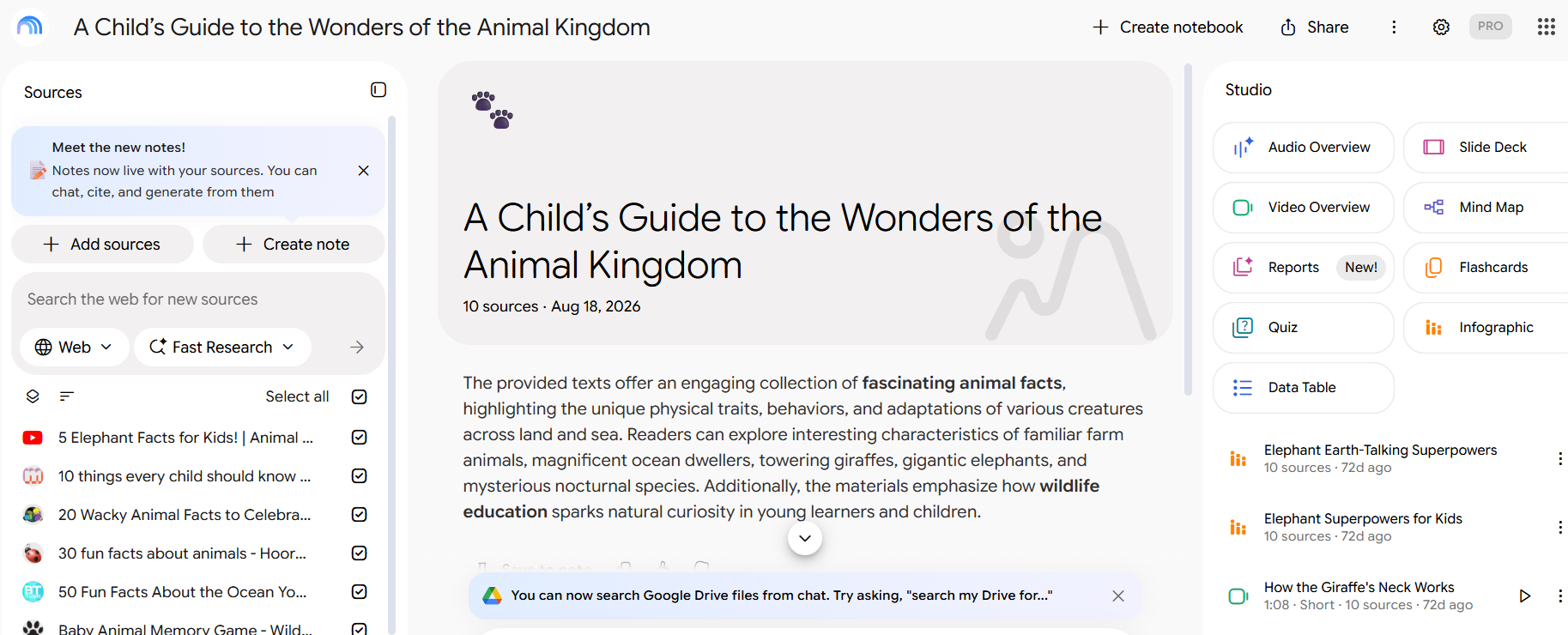
Sample Notebook. Sources on the Left, Chat in the Center, Studio Tools on the Right
A few ideas to get you started:
Turn a reading pile into a commute. Drop in the long reports or articles you keep meaning to read, and listen in the car or on a walk.
Study smarter. Students can load lecture notes or a textbook chapter, then call in with questions about the parts that didn't click.
Get feedback on your own writing. Upload a draft and use The Critique format to hear how it lands with an outside ear.
See both sides. Use The Debate on a decision you're weighing, then join in and push back on either host.
Prep for a meeting. Feed it the agenda and background docs, and ask the hosts what questions you should be ready for.
Make dense material friendly. Prompt the hosts to explain it like you're new to the subject. Legal documents, medical paperwork and technical manuals all get easier this way.
A few tips, and a few honest caveats
What helps:
Better sources, better episode. The hosts only know what you give them, so curate what you upload.
Use the custom prompt. One sentence about your audience or focus makes a real difference.
Keep working while you listen. The audio plays in the background, so you can check citations or chat with your sources at the same time.
What to know going in:
Interactive mode is English-only for now, even though regular episodes come in 80+ languages.
It only works on newly generated episodes, and people you share a link with can listen but can't call in themselves.
It's AI, so check the facts. Google notes that the audio can contain inaccuracies and the occasional glitch, like an odd voice switch or a short delay after you speak.
Privacy note: Google says your voice and transcribed questions in interactive mode aren't stored or shared.
Details here come from Google's Audio Overview help page, current as of October 2026.
Give it ten minutes
If you've never tried it, here's my challenge. Pick one thing you've been meaning to read. Drop it into a new notebook at notebook.google, generate an Audio Overview, and turn on Interactive mode. Then hit Join and ask one question.
I think you'll see why it's the hidden gem in my AI toolkit.
~ Amy